
Knowing how to find administrator access to business systems starts with looking beyond the staff directory. Privileged access may belong to employees, contractors, IT vendors, service accounts, or accounts created for emergencies. A system-by-system review helps you find those accounts, understand what each can do, and remove access that is no longer needed.
The goal is not simply to collect a list of names. For every account with elevated permissions, you should be able to identify an owner, a current business reason, and a plan for reviewing or removing the access. The Federal Trade Commission’s small-business vendor security guidance also highlights the need to consider vendor access when protecting business systems and information.
Start with a complete list of business systems
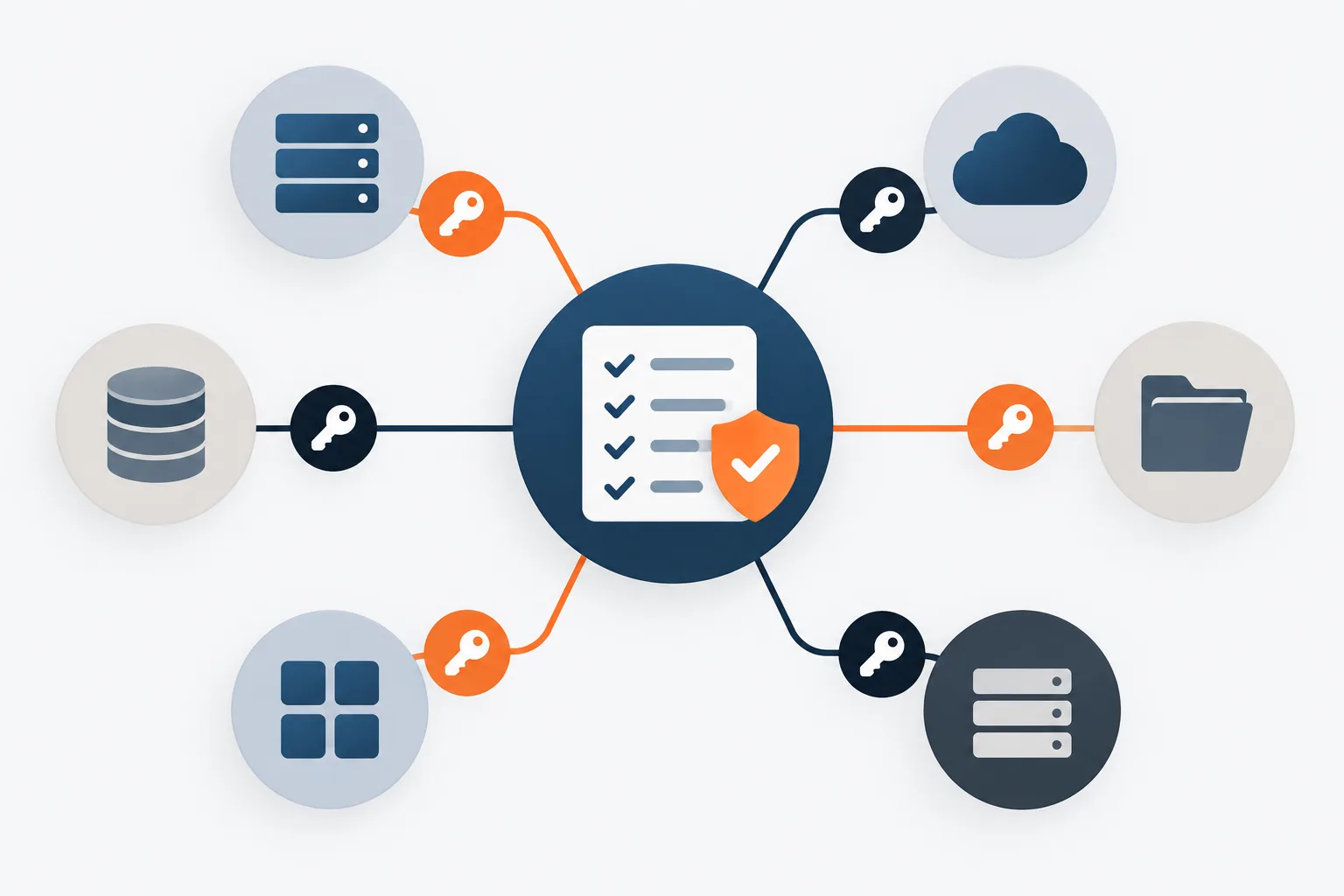
Choose a system-by-system approach so the review does not stop with email or the computers employees use every day. Ask the person responsible for IT, each system owner, and relevant vendors to help identify where administrator or other elevated accounts exist.
- Email and identity: Email, user directories, single sign-on, and account recovery tools.
- Files and cloud services: Cloud storage, collaboration tools, and platforms that hold or share business data.
- Devices and networks: Workstations, servers, mobile device management, firewalls, routers, wireless networks, and remote access tools.
- Business applications: Finance, payroll, customer management, scheduling, websites, and other systems where users can manage settings or other accounts.
- Backup and security tools: Backup platforms, security services, and systems used to monitor or manage your technology.
Use a list of systems, vendor documentation, account directories, and available access reports as starting points. Ask system owners directly whether they know of any separate administrative logins. A tool may have its own account system even when employees use a common sign-in for other services.
If your organization uses Microsoft 365, consult Microsoft’s documentation on administrator roles to understand the roles available and what their permissions allow. Review the roles actually assigned in your environment rather than assuming that every administrator has the same level of access.
Look for more than named employee accounts
A directory of current employees is useful, but it is only one part of a privileged account review. Include accounts that may be less visible or easier to overlook:
- Vendor and contractor accounts: Accounts used by IT providers, consultants, software vendors, or other outside parties.
- Shared accounts: Logins used by more than one person. Record who can use them and why they are shared.
- Service accounts: Accounts used by software or automated processes rather than a person. Identify who is responsible for each one.
- Emergency accounts: Accounts reserved for unusual situations. Confirm who controls them and how their use is reviewed.
- Built-in or older accounts: Accounts created by a system or left from an earlier setup. Find out whether they are still needed and who owns them.
Do not delete an unfamiliar account before checking its purpose. An account that does not appear in a staff list may still support a business process or system. First find an accountable owner, confirm whether the account is needed, and plan a safe change if it is not.
Build an administrator access inventory
Record enough information to make each account understandable to someone who was not involved in setting it up. An access inventory can be a controlled document or a suitable management system, provided it is kept current and protected from unauthorized access.
- System: The application, device, network, or service the account can access.
- Account and account type: The person or account name, and whether it belongs to an employee, vendor, service, shared, emergency, or built-in account.
- Role and permissions: The assigned role and a plain-language note about what it allows the account to do.
- Owner: The person accountable for confirming the account’s business need.
- Business reason: The work that requires the access.
- Review or removal plan: When the access should be checked again, or what event should prompt its removal.
For vendor accounts, include the vendor contact or internal sponsor and the business reason for the vendor’s access. A contract or service relationship alone does not explain which systems the vendor needs to reach. The FTC’s cybersecurity guidance for small businesses is another resource for thinking about access to business networks and devices.
Check whether each account needs full administrator access
For each privileged account, ask what tasks the person or service performs and whether those tasks require the current permissions. Someone who needs to manage one application may not need the ability to change settings across an entire organization. A vendor who performs occasional maintenance may not need ongoing access when that work is complete.
Where a system offers different roles, consider whether a narrower role can support the work. This is the practical meaning of least privilege: give each account only the access needed for its current purpose. Confirm the change with the system owner, make it in a planned way, and check that essential work still functions.
Pay particular attention to shared accounts. If multiple people use one login, it can be difficult to know who performed an action or whether a particular person still needs access. Where possible, use individually assigned accounts and appropriate role settings. If a shared account remains necessary, document its owner, users, business purpose, and review plan.
Remove access carefully when it is no longer needed
When an employee changes roles or leaves, or when a vendor’s work ends, use that change as a prompt to review their access across the systems in your inventory. Removing an account from one service may not affect separate logins for email, cloud platforms, network tools, or business applications. For a broader departure workflow, see the employee offboarding IT checklist.
Before changing an account, confirm who owns the system and whether the access supports a business process. Then remove or reduce permissions according to the organization’s process, update the inventory, and note who completed the change. For vendor access, coordinate with the internal sponsor and vendor contact so the work can be completed without leaving unnecessary access in place.
If an account’s purpose is unclear, record the question and assign someone to resolve it rather than letting it disappear from the review. This creates a clear follow-up and helps prevent old or unexplained access from being overlooked.
Make access reviews repeatable
A useful review has a recurring schedule and also responds to changes. Choose a review frequency that fits your systems, business needs, and ability to follow through. Put the next review on a calendar, name the person responsible, and record when each review is complete.
Also revisit access when an employee changes responsibilities, a vendor’s work changes or ends, a system is replaced, or an account’s purpose is no longer clear. During each review, confirm that the account still exists for a valid reason, its owner is known, and its permissions still match the work. Reduce or remove access when the current need no longer supports it, then update the inventory.
For help connecting access reviews with broader identity and permission management, explore Zevonix’s overview of managed identity and access management.
Conclusion
Finding administrator access takes a complete system list, a careful look at employee and non-employee accounts, and a record of who needs what and why. Turn the review into a recurring process, and revisit permissions whenever people, vendors, or systems change. If you would like help identifying access review priorities, Zevonix offers a free security assessment. You can also call (904) 658-0777.